Somehow I got opportunity to create the system for registering more than 1000 attendees
for an international conference. It all started with the pre-created
Google form. Requirement for the same were:
Do you like the article?
What do you think?
Is this method useful?
What are pros and cons of this method?
Comment what you feel.
Thank you for reading.
Share if you care...!!!
~Sanket Tambare,
sanket.tambare@pm.me
- Attendees should get the form on his mail
- All attendees should get the registration number immediately when he/she fills the form.
- After registration of all attendees segregated reports required.
- List of all attendees district wise, on accommodation basis and genderwise.
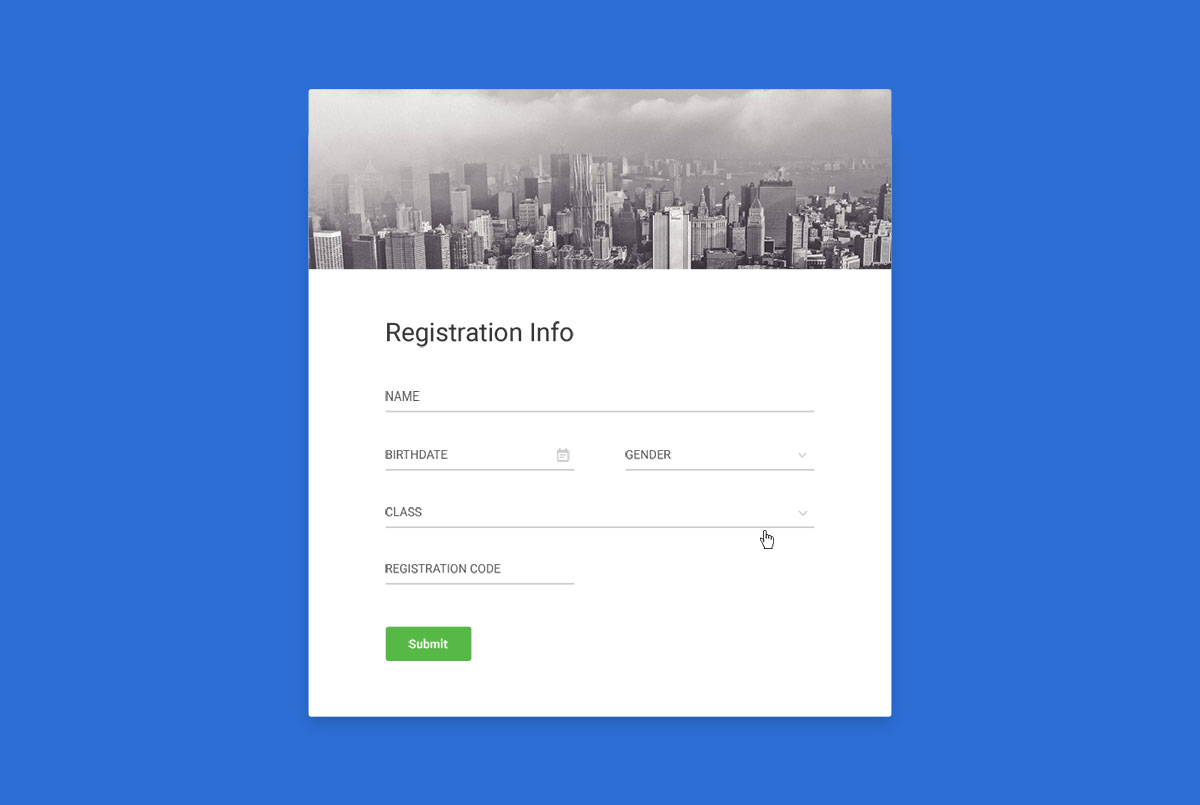 |
| Registration Form |
Step 1: creating Google form with the given questions.
- Obviously this was the first ape and easiest one.
- Create the new form choose from the preset templates for eg.registration form.
- Add questions of particular type as per requirement.
- User interface for creating Google form is very simple which normal computer user can simply use.
 |
| Form Templates |
 |
| Sample Form GUI |
Some settings that I recommend:
- Enable "collect email address".
- Enable "show progress bar button".
- Change text that appears after filling up the form in the setting
 |
| Progress Bar Settings Page |
Step 2: you attend it should get the field of form on email instantly:
That's quite easy just check in the checkbox of send response receipts.
 |
| Settings Window |
Step 3: All attendees should get the registration number when he/she fills up the form:
- For this an addon of "form confirmation emails" is required.
- Grant permissions to this add on.
- It is simple to configure automatic email with simple GUI.
 |
| Addon Add Window |
 |
| Sample Code for Google Script |
- But there is limit of 100 emails per day per form.
- To send more than hundred emails per day, you have to take add on subscription.
- For sending automatic emails about registration number using google script you need to add one row of registration number in the result sheet of form.
- if you don't want to pay you can use Google script to send emails automatically. JavaScript add various triggers can be used to set up automatic emails using Google script.
- With this everyone will get the registration number when he feels up the form.
Step 4: Analysing the results of the Google form using pandas python library.
- Now important step is to analyse the field update and categorise into different categories as like accommodation requirement and gender wise lists.
- For this python based machine learning library pandas is used.
- You have to simply import numpy as np.
- All result and data sheets can be exported to excel sheet.
- All the summary of all data can be extracted by printing jupyter notebook.
 |
| Male and Female responses |
 |
| Different Attributes |
 |
| Travel and Accomodation Analysis |
 |
| Exporting Data to excel sheet. |
Advantages of this method:
- There is no limit for number of responses in Google form.
- All attendees can receive registration number.
- Result sheet can be easily generated and updated automatically.
- Also the Google scripts can be added in the sheets and share can be set automatically.
Disadvantages of this method:
- Daily limit of and 100 responses for addon.
Problems may arise when you are doing this for first time.
Conclusion:
For this, Google Forms, Form Confirmation Email addon, Google Scripts and Pandas Data Analysis is used.
This method can be effectively used for registration process of any big event.
Do you like the article?
What do you think?
Is this method useful?
What are pros and cons of this method?
Comment what you feel.
Thank you for reading.
Share if you care...!!!
~Sanket Tambare,
sanket.tambare@pm.me
Comments
Post a Comment